JPHEG / ANDROID · PHOTO UTILITY
JPHEG
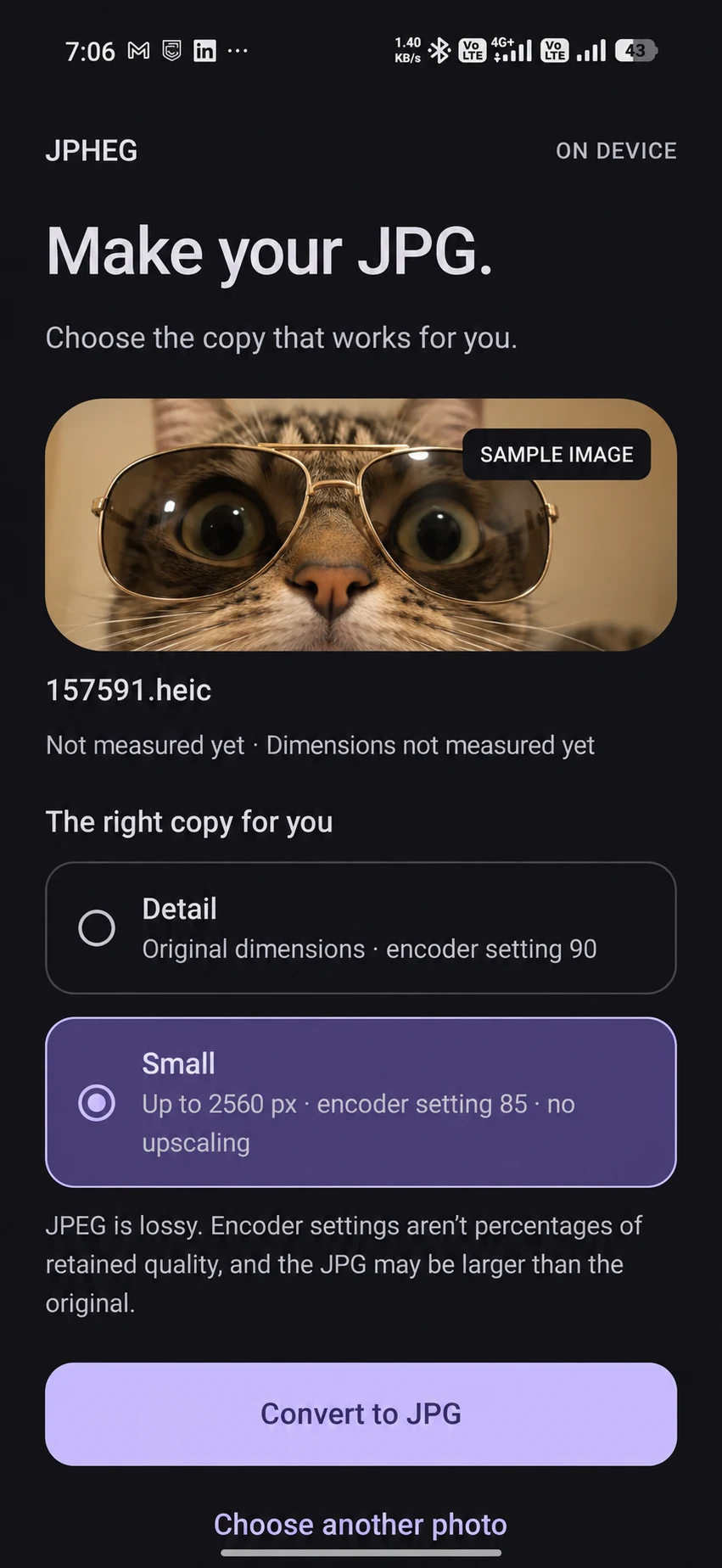
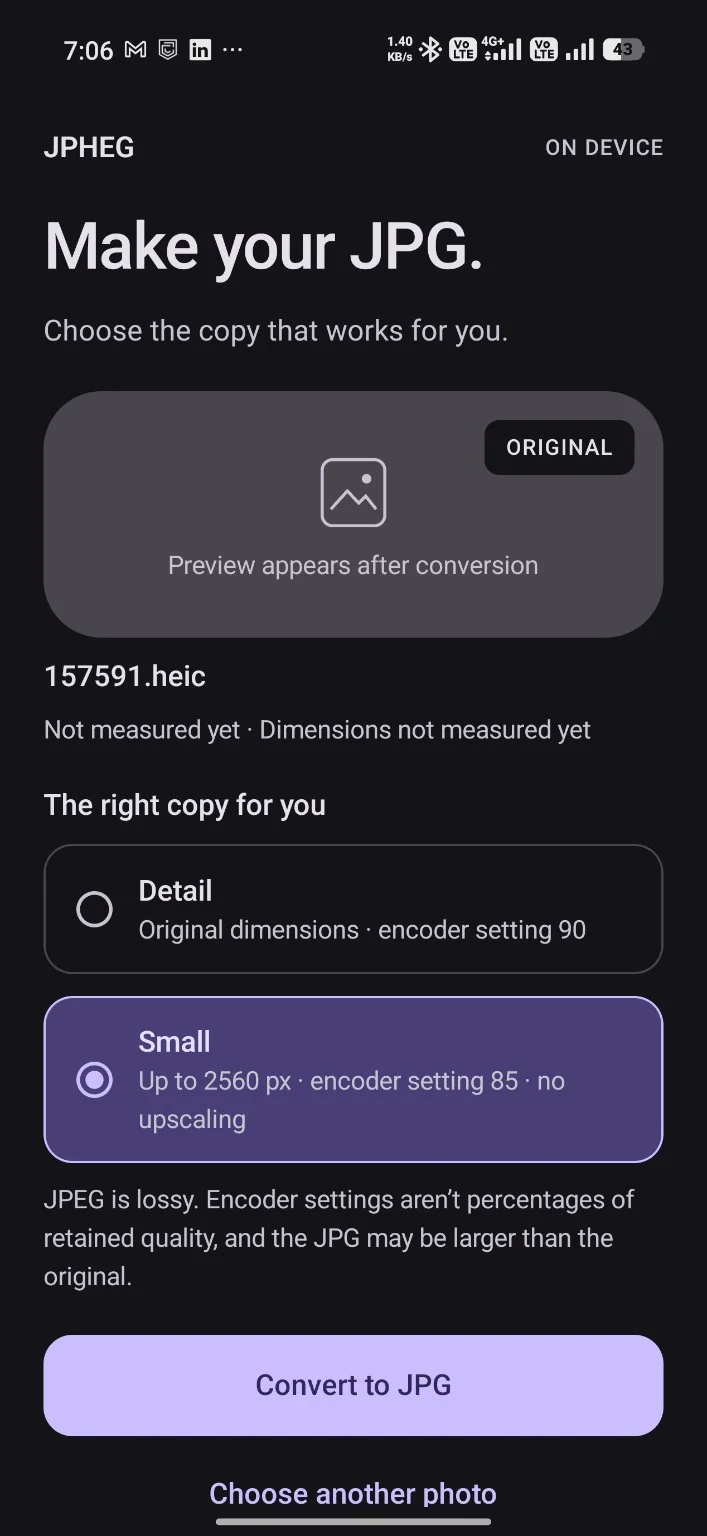
A phone utility for the moment an upload form rejects a HEIC image. Choose a photo and output size, then compare the JPEG before saving or sharing it. Built with Kotlin and Jetpack Compose.
Why I built it
A HEIC photo can be fine while an upload form still asks for a JPEG. The job is small but concrete: make a compatible copy on the phone without losing the original image.
What it does
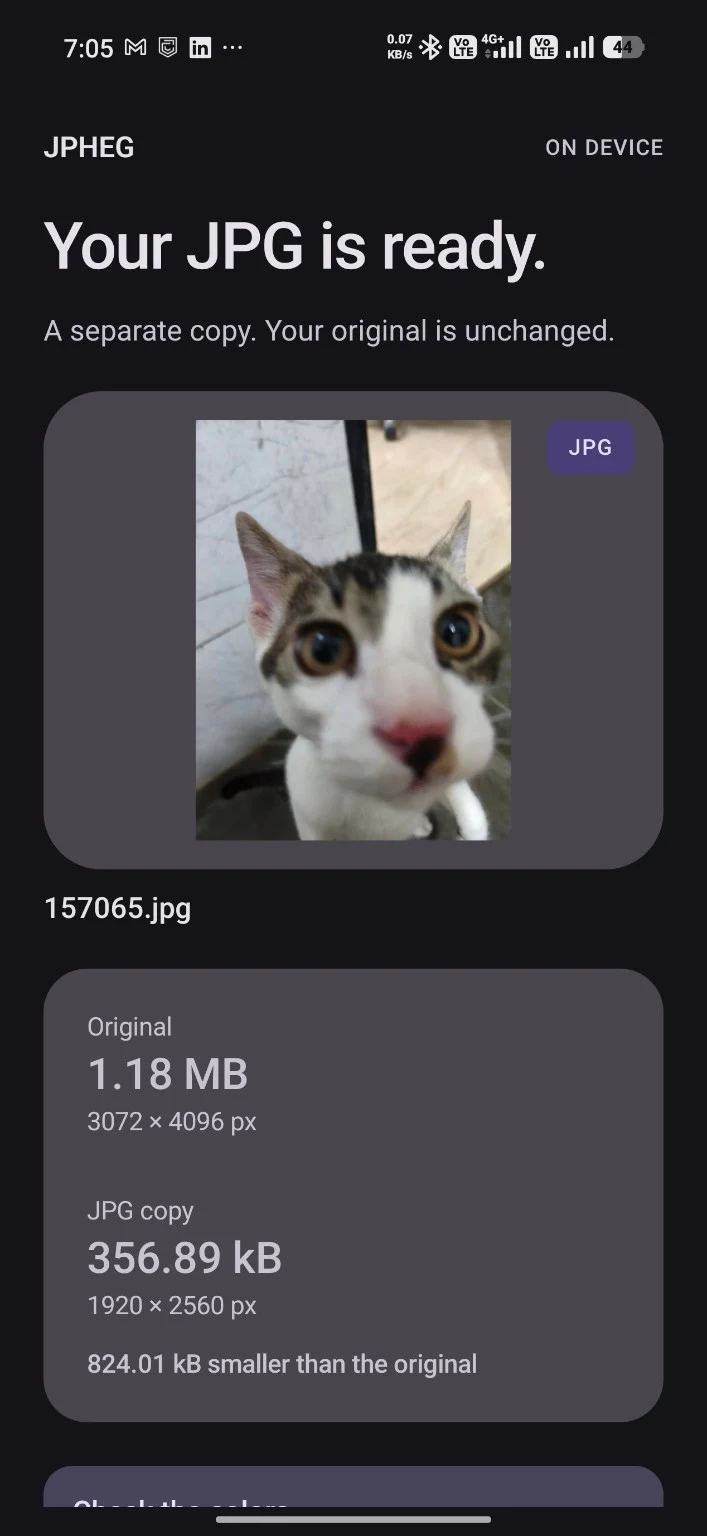
JPHEG offers two output sizes, then shows the new JPEG beside its file size and dimensions before I save or share it.
How I approached it
I designed the job as a small, reversible conversion: choose one photo, pick an output size, then save or share the JPEG.
Keep the original.
The JPEG is saved as a separate copy, so the original photo stays unchanged.
Make size a decision people can understand.
The interface offers a detail preset and a smaller output preset. Those are different uses: retaining more of the image, or making a lighter file to share. The choice belongs before conversion.
Show what changed.
The result screen puts the original and JPEG file sizes and dimensions together, so I can compare them before saving or sharing.
IN PRACTICE
Uses and technology.
Where it can help
- Make a JPEG copy for an upload that does not accept HEIC.
- Choose a smaller image before sharing.
- Compare the original and output dimensions before saving.
Built with
 Kotlin
 Jetpack Compose
 Android
- Kotlin / Jetpack Compose
- Single-photo selection, presets and result review.
- Android ImageDecoder / Bitmap
- Platform image decoding and JPEG output.
- ViewModel / sharing provider
- Conversion state and read-only access to the result for sharing or saving.
The flow handles one photo at a time.